|
SSH X11 Forwarding
2015/05/02 |
|
It's possible to display and use GUI applications in remote server on local client with SSH X11 Forwarding.
|
|
| [1] | Enable X11 Forwarding on SSH server. |
|
root@dlp:~#
vi /etc/ssh/sshd_config # line 65: uncomment X11Forwarding yes X11DisplayOffset 10 systemctl restart ssh |
|
How to use on a Client : Debian
|
|
This is the way to use GUI App on a Debian client which desktop environment is installed.
|
|
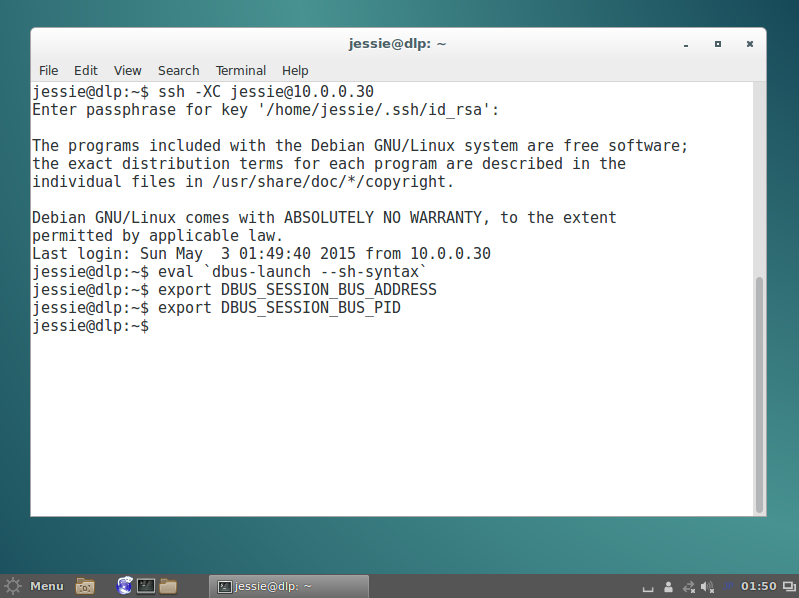
| [2] | Start Terminal and connect to the SSH server which is enabled X11 Forwarding with "ssh -XC xxx" like follows. After connecting, input commands like follows. $ eval `dbus-launch --sh-syntax` $ export DBUS_SESSION_BUS_ADDRESS $ export DBUS_SESSION_BUS_PID |
|
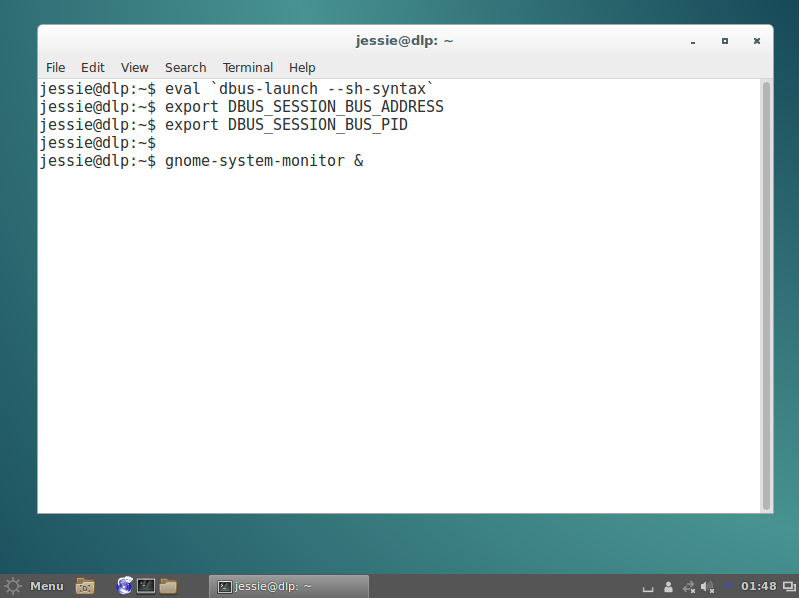
| [3] | Next, execute a GUI application which you'd like to. For example, start System Monitor. |
|
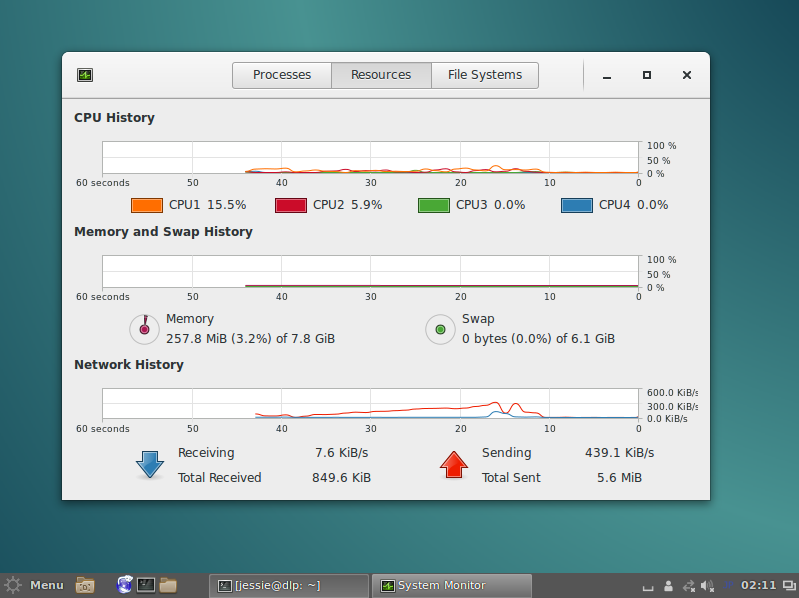
| [4] | Just displayed System Monitor which in on remote server. |
|
|
How to use on a Client : Windows
|
|
This is the way to use GUI App on a Windows client. For example, it shows Windows 8.1 and Putty.
|
|
| [5] |
First, Install Xming. Download it (Xming-***-setup.exe) from the site below and install. It's Ok to install with default all.
⇒ http://sourceforge.jp/projects/sfnet_xming/ |
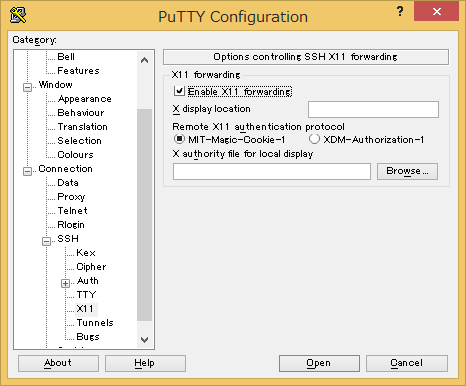
| [6] | After installing Xming, start Putty and select X11 on the left menu and check a box "Enable X11 forwarding" on the right pane. Next, connect to the SSH server which is enabled X11 Forwarding. |
|
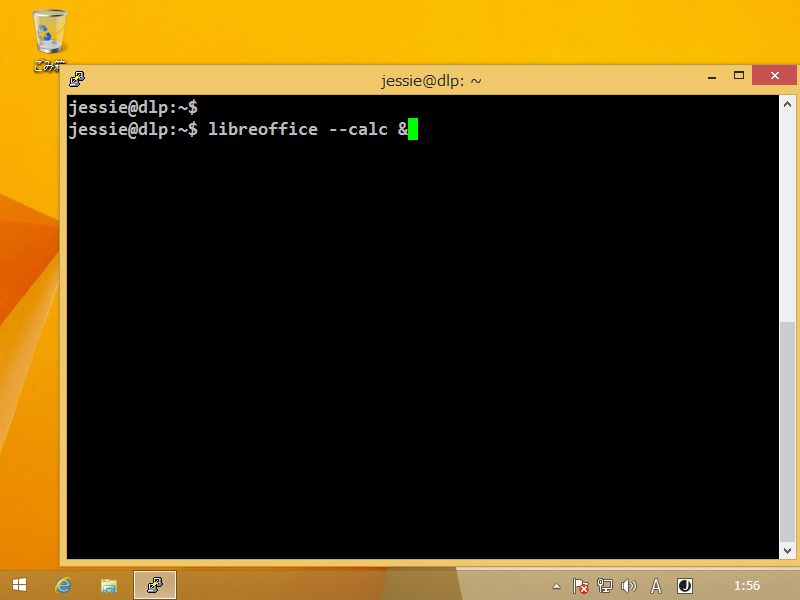
| [7] | After login to remote server, execute a GUI application which you'd like to. For example, start Libre Office Calc. |
|
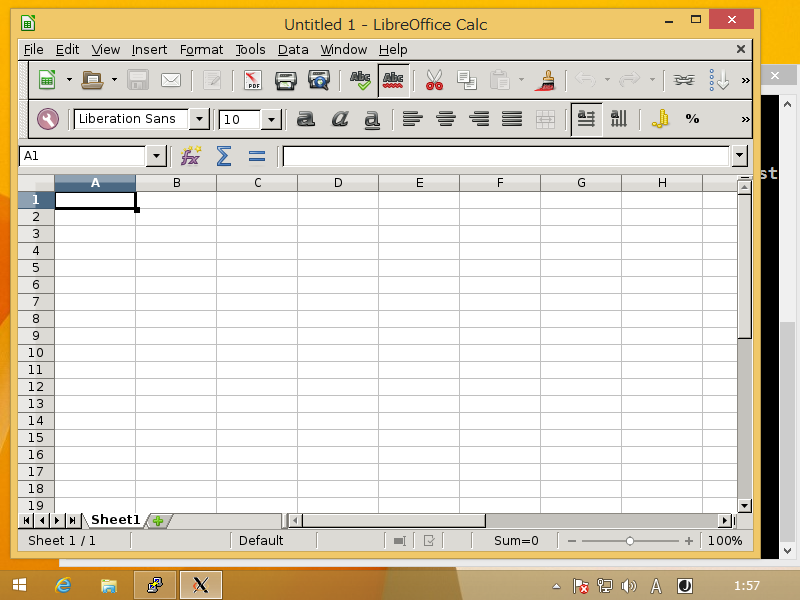
| [8] | Just displayed Libre Office Calc which in on remote server. |
|